
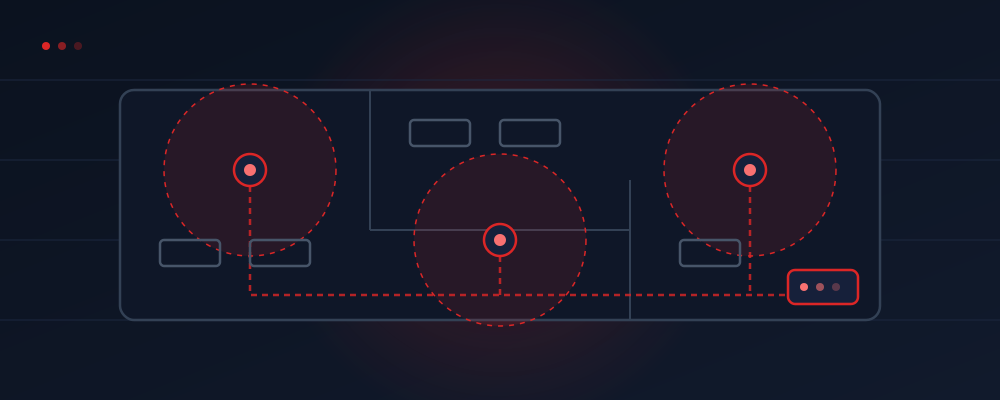
Most bad office WiFi in Dubai is not caused by a bad internet package. It is caused by a good internet package terminating in a router that was installed wherever the fibre happened to enter the unit — usually a corner store room — and then being asked to cover an entire floor through concrete and glass. This guide is the practical version: what to do, in what order, to end up with WiFi that holds a video call in every room.
Step 1: Size the Connection to Concurrent Usage, Not Headcount
Before anything wireless, get the line right. The number that matters is how many people are doing bandwidth-heavy things at the same time — video calls, cloud uploads, large file transfers — not how many desks you have. A twelve-person office where three or four people are on Teams at any moment is comfortable on a mid-tier plan; the same office running continuous video for everyone is not.
Treat this as a starting point for a conversation, not a quote — wall material and device density move these numbers. The full plan-by-plan breakdown is on the business internet plans page.
Step 2: Put Access Points Where People Sit
The single highest-impact decision in the whole setup, and it costs nothing to get right. Fibre enters the unit at a fixed point; that is where the router lives. It is almost never where your people are. So run cabling from that point and mount access points over the areas that actually generate traffic: the open-plan desks, the meeting rooms, the corner office at the far end.
Rules of thumb that hold up in real Dubai offices: one AP covers roughly 100–150 sqm of open plan, or 25–30 active devices. Every gypsum wall costs you signal; every concrete column and glass partition costs more. Mount APs on the ceiling in the open, not inside a metal cabinet or behind a wooden panel. And if a meeting room has a solid wall between it and the nearest AP, it needs its own — meeting rooms are where WiFi failures are most visible and most expensive.
Step 3: Split Guest Traffic From Staff Traffic
Give visitors their own network. This is a configuration decision, not an extra purchase, and it solves two problems at once: a visitor streaming video no longer competes for airtime with your sales team's calls, and a visitor's laptop can never reach your internal machines, printers or shared drives. If you take one security step in your office network, this is the one.


Step 4: Secure It Properly
Business WiFi security is not complicated, but it does get skipped. Keep the cloud firewall active — on e& business packages it is bundled into the plan, so leaving it off is throwing away something you already pay for. Use WPA3 or WPA2-Enterprise rather than a single password written on the whiteboard. Change the password when someone leaves. And keep the antivirus licences that come with the package actually deployed on staff machines, rather than sitting unused in the account.
Step 5: Test Before You Sign Off
On installation day, do not accept a speed test taken standing next to the router — that only proves the fibre works. Walk the office. Run a speed test and a live video call in every room, especially the far corners and the meeting rooms. If a room fails, it fails now, while the installer is still on site and cabling can be moved. Once the team moves in, fixing it becomes a scheduling problem.
The Timeline for a New Dubai Office
If the building is already fibre-served, the business internet line is typically live 3 to 5 working days after your trade licence, establishment card and signatory ID are submitted and the site survey is done. The WiFi work — mounting access points, running cabling, configuring the guest network — is usually a single visit on or just after activation day. Buildings that need fibre pulled in are the exception and can take weeks, which is why the very first question for a new office is whether the unit is already served. New companies should also read our guide to setting up internet for a new Dubai company, and if you are weighing operators, the business WiFi guide covers how e&, Etisalat and Du business WiFi compare.
Frequently Asked Questions
How many access points do I need?
Roughly one per 100–150 sqm of open plan or 25–30 active devices. Partitioned offices with solid walls need more.
Do guests need a separate network?
Yes. It keeps visitor devices off your internal network and stops guest streaming from eating your staff's bandwidth.
How long does the whole setup take?
3–5 working days for the line in a fibre-served building, with the in-office WiFi usually done in a single visit.
Setting up a new office in Dubai?
Send us your floor size and team count — we will size the line, plan the access points, and handle the activation paperwork for you.
Plan My Office WiFi on WhatsApp